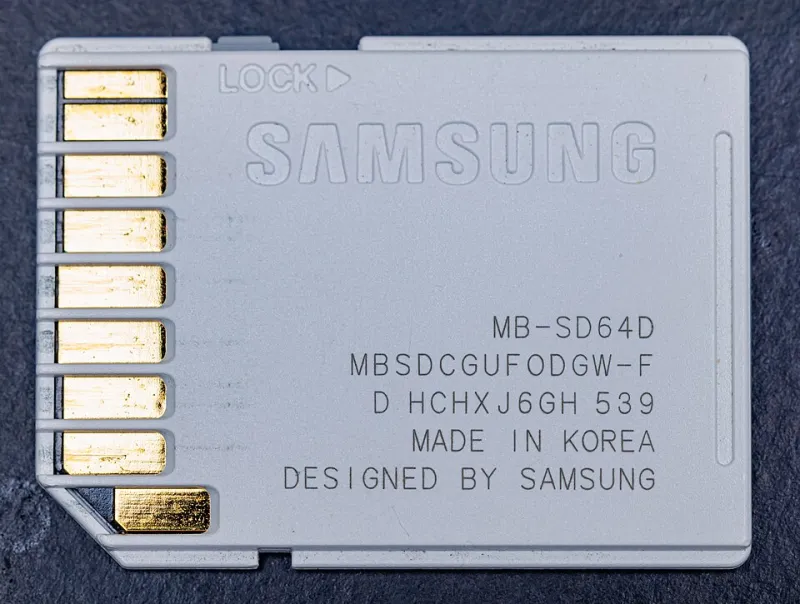
Why Android Phones Drop Their microSD Cards—and How to Recover Photos Without Rooting
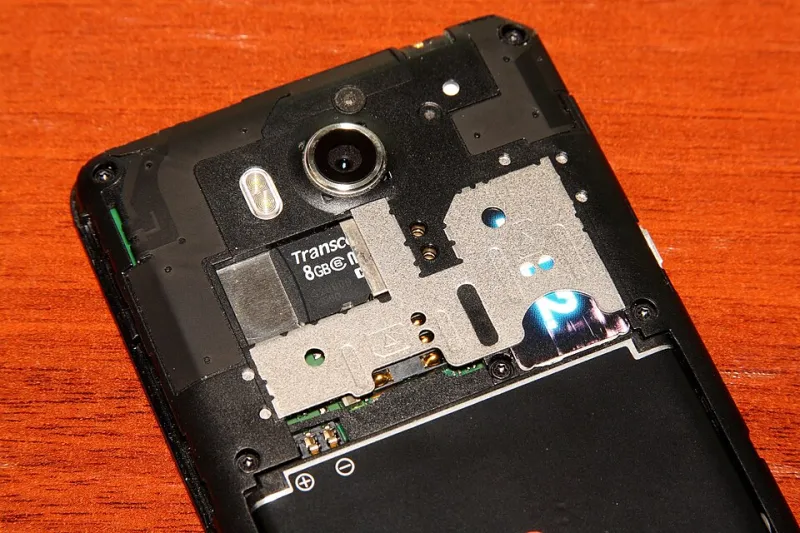
Photo: Ilya Plekhanov, CC BY-SA 3.0, via Wikimedia Commons
The notification is a symptom, not a command to format
Android's 'SD card unexpectedly removed' message appears when the operating system loses contact with the card's block device while it is mounted. The phone may immediately offer to format the card, remount it, or move data to internal storage. None of those prompts should be accepted while the photos matter. Formatting is destructive, and moving data can trigger more writes to a card that is already unstable.
The usual causes are mundane: worn card contacts, a loose tray, a failing microSD controller, a power interruption during a write, or a card removed without being unmounted. Filesystem corruption is also common, particularly on cards that have been used across multiple Android devices. Root access does not address any of those causes. It can alter the phone's security state, trip manufacturer protections such as Samsung Knox, and complicate warranty service without improving the odds of recovery.
Contact failure or filesystem corruption?
A few observations narrow the diagnosis. If the phone drops the card when the device is moved or the tray is pressed, suspect a contact or slot problem. If the card is recognized in a desktop reader but the phone still reports removal, suspect the phone's reader or firmware. If the reader detects the card but the operating system asks to format it, the controller is probably working and the filesystem is damaged. If no reader detects the card at all, the card's controller or internal mapping table may have failed.
US carrier firmware adds its own quirks. Some carrier-branded Samsung Galaxy A-series phones prompt users to format a new microSD card as portable storage or as internal/adoptable storage. Adoptable storage encrypts and integrates the card with the phone, which makes later reader-based recovery far more difficult. Decline that option when the card contains photos you may need to recover. Motorola devices on some carrier builds may silently remount a card after an error, which can produce a second wave of writes. Google Pixel phones do not include microSD slots, so the workflow below applies to Samsung, Motorola, and other Android devices that still support removable storage.
Before removing the card
If the phone still responds, unmount the card through Settings before physical removal. On Samsung devices, the path is typically Settings, Battery and device care, Storage, then the SD card menu. On other Android builds, look under Settings, Storage, or Settings, Storage and USB. If the phone is unresponsive or the card has already dropped, power the device off completely rather than pulling the tray while it is on.
Do not accept a format prompt. Do not use Android's 'forget' or 'eject' option as a repair step. Do not install a root utility, a partition editor, or a 'card repair' app that writes to the card. The goal is to stop writes, not to teach the phone a new filesystem.
A step-by-step recovery workflow
-
Power down the phone and remove the microSD card from its tray. Inspect the gold contacts under bright light. If there is visible debris, wipe them gently with a dry, lint-free cloth. Do not use alcohol, erasers, or metal tools.
-
Insert the card into a quality USB 3 card reader. Connect the reader directly to a desktop or laptop, not through a hub, dock, or monitor. Try one alternate cable or port if the first attempt fails. If the computer sees the card with the correct capacity, proceed. If it does not, stop and consider professional evaluation.
-
If the card is an SD-form factor in an adapter, move the adapter's write-protect tab to locked. MicroSD cards themselves have no switch, so the adapter is the only hardware protection available.
-
Create a bit-for-bit image of the card before scanning it. On Windows, Win32DiskImager can write an image file to a separate drive. On Linux or macOS, ddrescue is the safer choice because it can retry bad sectors without demanding that the whole card read perfectly. Store the image on a drive with enough free space.
-
Scan the image, not the original card, with desktop recovery software that supports photo and video signatures. Recover the files to a third drive. Never recover files back onto the suspect card, and never let the software 'repair' the original filesystem.
-
Open a sample of recovered photos in a viewer and confirm that the files are complete. If the images are raw files from a camera, open them in the camera manufacturer's software. If they are Android JPEGs or HEIC files, check both the thumbnail and the full-size image.
-
Replace the microSD card. A card that has dropped once is more likely to drop again, and the low cost of a new card is not worth a second recovery attempt.
Safe eject habits that prevent repeat failures
Treat removable storage as removable. Unmount the card before taking it out, avoid pulling the tray while the phone is writing, and keep the contacts clean. Use a reputable card from a major brand, buy from an established retailer rather than a marketplace seller with unknown stock, and test new cards before relying on them. Back up photos to a computer or cloud service on a regular schedule; recovery is a last resort, not a backup strategy.