When the Camera Rejects the Card: A Triage Method for Canon, Sony, and Nikon Shooters
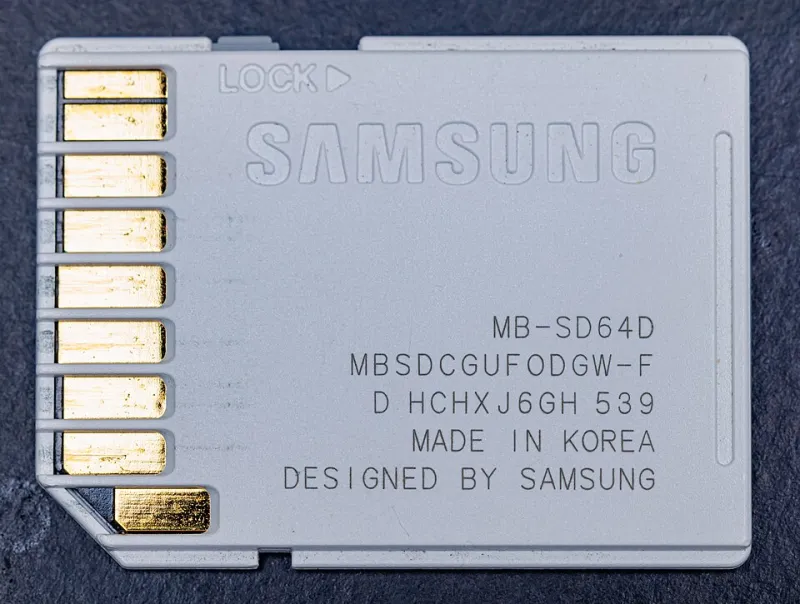
Photo: Dinkun Chen, CC BY-SA 4.0, via Wikimedia Commons
The first ten minutes matter more than the first recovery tool
A camera error message is a symptom, not a diagnosis. The instinct to reseat the card, press the format button, or keep shooting is understandable, especially on a paid assignment. It is also the fastest way to turn a recoverable filesystem problem into a much harder case. On-camera formatting can overwrite file allocation tables and directory entries, and repeated insertion can stress a failing controller or dirty contact.
When a camera reports a card problem, stop writing immediately. Power the camera off, remove the card, and place it in a clean, dry case. If the card is an SD model, slide the physical write-protect tab to the locked position. CFexpress and XQD cards do not have that switch, so handle them by the edges and keep them away from moisture and static. Do not format in camera, do not run a camera-side repair function, and do not copy files back to the same card. Record the exact error message, the card brand and capacity, the last file that opened correctly, and whether the failure occurred during capture, playback, or transfer. Those details help distinguish a controller fault from a filesystem interruption.
Read the message before you touch the card
Camera manufacturers use different wording, but the messages generally fall into four groups. Access errors mean the camera cannot enumerate the card at all. Format prompts mean the card is present but its filesystem is not recognized. Write-protect notices point to the SD lock tab, a damaged switch, or a reader limitation. Playback errors suggest bad blocks or directory corruption rather than a complete controller failure.
Canon bodies often display 'Card cannot be accessed. Reinsert/change card or format card with camera' or a plain 'Card error.' The format option is tempting because it is presented as a fix, but it is a destructive step. On dual-slot Canon models, switch capture to the unaffected slot and leave the suspect card untouched. CR3 files usually sit under a DCIM folder with a Canon-specific subfolder; preserving that structure improves the odds that recovery software can rebuild filenames and folders.
Sony cameras may report 'Unable to use memory card. Format?' or ask the shooter to reinsert the card. Some Sony models also maintain an image database, and a database error is not the same as a card filesystem failure. If the camera offers a database rebuild, that operation may be appropriate only when the files themselves are readable in a card reader. It is not a substitute for recovery, and it should not be confused with formatting. ARW files normally live under DCIM in Sony's folder scheme.
Nikon bodies tend to be blunt: 'This card cannot be used. Card may be damaged. Insert another card' or 'Card is not formatted. Format card?' A Nikon that can play back older NEF files but fails on new captures is showing a different symptom from one that cannot mount the card at all. The first case points to directory or block-level damage; the second points to the card interface, the camera slot, or the controller.
Controller fault versus filesystem corruption
The practical test is a known-good USB card reader connected directly to a desktop computer. If the reader sees the correct capacity and the operating system mounts the card, the controller is probably alive and the problem is likely filesystem-level. If the reader sees no device, a zero-byte device, or the wrong capacity, the controller or the card's internal mapping table may be at fault. If the card works perfectly in the reader but not in the camera, suspect the camera slot, bent pins, or contaminated contacts rather than the card itself.
Do not use a phone as the first test bed. Android and iOS devices can add another layer of mounting behavior and may prompt to format or adopt the card. A desktop reader gives a cleaner answer. Try one alternate reader and one alternate cable or port, then stop. Endless reinsertion does not diagnose anything and can make a failing card worse.
A recovery path for CR3, ARW, and NEF files
If the card mounts in a reader, the first operation should be a bit-for-bit image, not a direct scan of the original. Tools such as ddrescue on Linux or macOS, or Win32DiskImager on Windows, can create an image file on a separate drive. If imaging stalls repeatedly, note the error and consider professional help rather than forcing the card through hours of retries. Work from the image whenever possible, and recover files to a third drive, never back to the suspect card.
Recovery software should be set to scan for the specific raw formats in use. CR3, ARW, and NEF are container formats with embedded previews and metadata; a generic photo scan may find JPEG previews but miss the raw file itself. After recovery, verify a sample of files in the manufacturer's own software: Canon Digital Photo Professional, Sony Imaging Edge, or Nikon NX Studio. A file that opens as a thumbnail but fails in the raw converter is not fully recovered.
When to stop
Stop DIY work if the card becomes hot, is physically cracked, has been exposed to water, or is not detected by any reader. Those are signs of hardware or controller failure, and software cannot repair them. For a card holding a wedding, a commercial shoot, or irreplaceable family images, the cost of a professional evaluation is easier to justify than the cost of a failed experiment.